How to Turn a Photo Into an Amigurumi (Pet, Portrait & Character Guide)
Quick Answer
Turn a pet, portrait, or character photo into a crochet amigurumi visual. Learn which photos work, how to plan likeness, and when to use plush previews versus flat crochet charts.
Why Start From a Photo?
Custom amigurumi — a pet, a child, a game character, or an original mascot — usually begins with a reference image. The hard part is not finding inspiration; it is imagining how that flat photo becomes a round, stuffed, yarn-covered object with the right proportions and colors. A photo gives you a fixed target for likeness: ear shape, muzzle length, hair volume, outfit colors, and expression. Whether you crochet from scratch, adapt an existing pattern, or sell commissions on Etsy, seeing a plausible plush version of the reference first saves hours of ripping back and guessing.
Photo to Amigurumi vs a Flat Crochet Chart
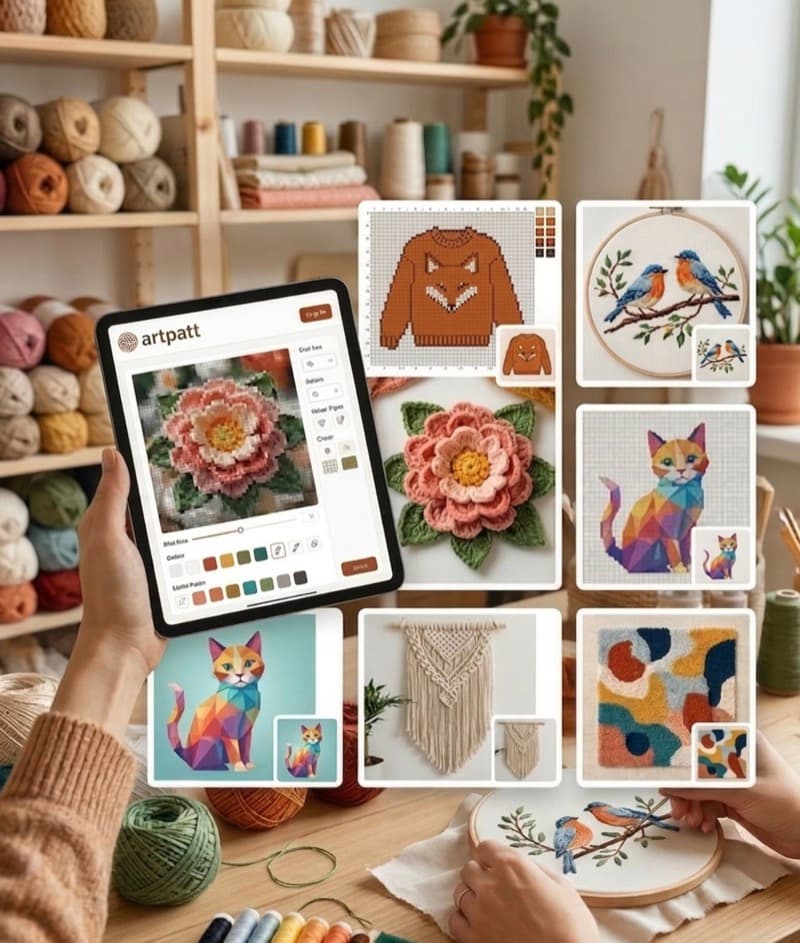
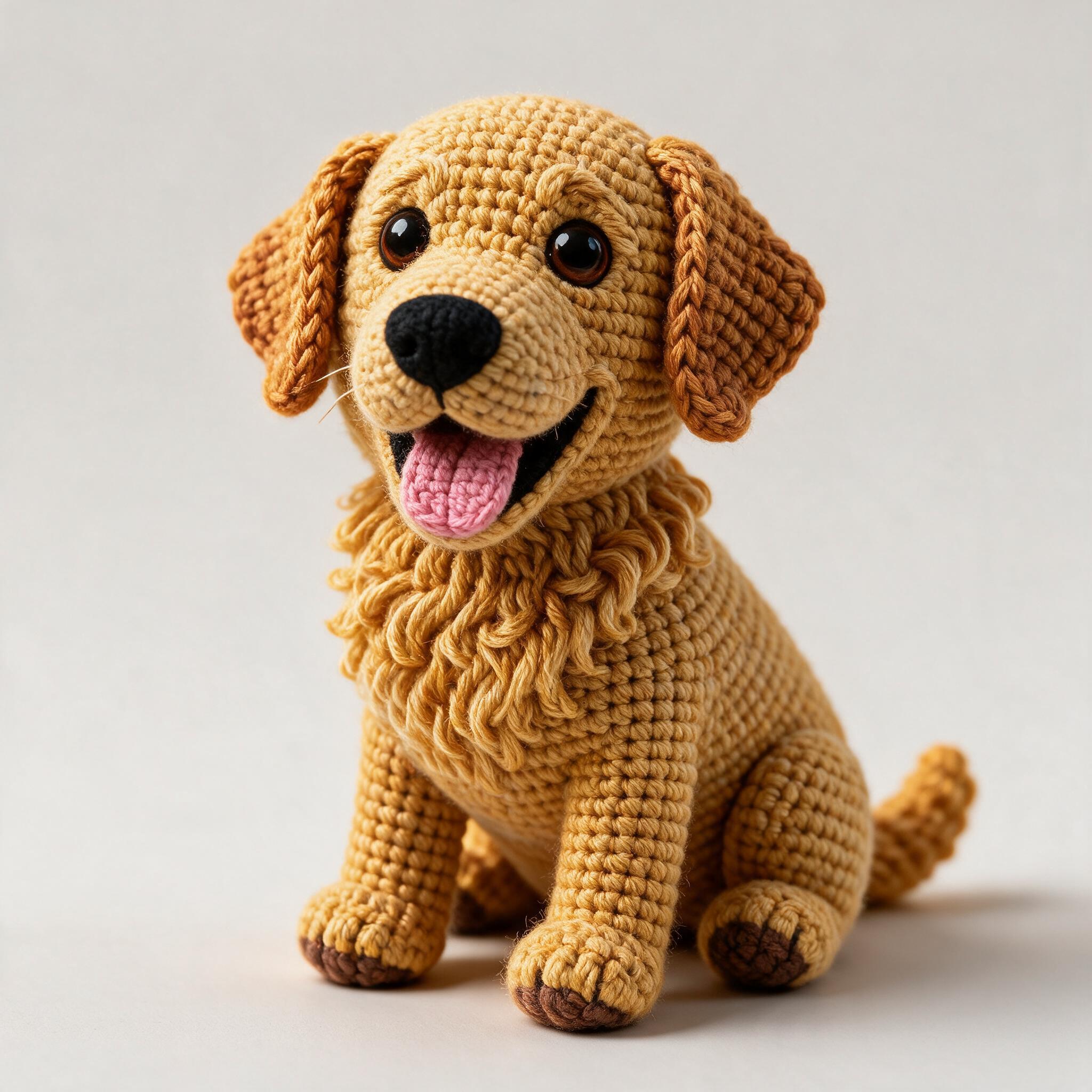
These solve different problems. A flat crochet chart (graphghan, tapestry, C2C) maps your photo to a grid of stitches — great for blankets, wall hangings, and colorwork where the image lies on one plane. Amigurumi is three-dimensional: spheres, tubes, color changes in the round, and stuffing that changes how the face reads. Turning a photo directly into round-by-round instructions is still expert work. What you can do today is generate a visual preview — how the subject could look as a finished plush with yarn texture and studio lighting — then use that as your sculpting brief while you crochet or while you brief a pattern writer. ArtPatt offers both: the free crochet pattern generator for flat charts, and the Amigurumi Generator (Pro) for plush visuals.
Best Photos for Pet Amigurumi
Pet commissions fail most often because the source photo is too wide, too dark, or shows multiple animals. Ideal pet references: one animal, face and upper chest filling most of the frame, taken in daylight or soft indoor light, eyes in focus, and minimal motion blur. Golden retrievers, tabby cats, and breeds with strong silhouette features convert well because ears, snout, and markings stay readable when simplified into yarn. Avoid flash-heavy night shots (washed-out eyes), extreme wide-angle distortion (giant noses), and grass backgrounds that compete with fur color. If you only have a busy photo, crop in your phone before uploading — tight crops matter more than megapixels.
Portraits, Kids, and Characters
Human portraits and illustrated characters follow the same rules as pets: one subject, clear lighting, identifiable hair and clothing colors. Front or three-quarter views work better than pure profiles for first attempts because both eyes and the full face shape are visible. For characters with hats, glasses, or oversized accessories, keep those elements in frame — they are often what makes the plush recognizable. Anime and game characters with saturated hair colors translate well because amigurumi relies on bold color blocks rather than subtle skin-tone gradients.
Crop Before You Generate
The single cheapest quality upgrade is cropping. Remove empty background, other people, furniture, and text overlays. Center the subject so the face sits in the middle third of the image. In ArtPatt's generator, use the crop step after upload to frame head-and-shoulders for people or face-and-chest for pets. A 1200px-wide well-lit crop beats a 4000px full-body snapshot where the subject is tiny. If you plan multiple sizes (keychain vs display plush), generate from the same tight crop and compare small, medium, and large outputs — proportions shift slightly with each size setting.
Using ArtPatt's Amigurumi Generator
Open the amigurumi pattern generator landing page or go directly to the generator. Upload your cropped photo straight from your phone or computer. The Amigurumi Generator requires ArtPatt Pro; checkout returns you to the generator with your photo still loaded. Choose doll size — small (~15 cm), medium (~25 cm), or large (~35 cm) — to nudge proportions. Generate takes roughly 15–40 seconds. Use the before/after slider to judge likeness: ears, eye spacing, main colors, and outfit details. Download the PNG for Pinterest mockups, client approval, or your Ravelry/Etsy listing. When you're ready for flat colorwork from the same photo, switch to the crochet pattern generator for a free grid chart.
What to Do After the Preview
Treat the generated image as a reference board, not a finished product listing unless your terms allow it. Plan color changes: note which yarn colors match the preview's body, muzzle, and accent areas. Decide construction order — head, body, limbs, assembly — and whether safety eyes or embroidered features match the preview best. If the plush shape in the preview looks too round or too elongated for your skill level, adjust your manual pattern or choose a simpler pose in a new generation. For troubleshooting lumpy, flat, or inside-out crochet work, see our amigurumi troubleshooting guide on the blog.
Common Mistakes to Avoid
Uploading group photos and expecting one doll to represent everyone. Using heavy beauty filters that erase the markings you need for a pet portrait. Skipping the crop and letting background clutter steal contrast from the subject. Confusing a plush visual with a written pattern — buyers and students still need stitch instructions for a sellable PDF pattern. Running out of Pro generations on experiments: plan one tight crop first, then iterate size. Remember failed generations on ArtPatt do not use your quota, so retry if the service times out.
FAQ
Can you turn a photo into an amigurumi?
Yes. You can sketch by hand, commission an artist, or use ArtPatt to preview how a subject could look as a crochet plush. The Amigurumi Generator (Pro) renders yarn texture and proportions from a clear portrait or pet photo in about 15–40 seconds.
What photos work best for photo-to-amigurumi?
Tight crops on one subject, good lighting, and a plain background. Front-facing pet portraits and character photos with clear face, hair, and outfit colors convert best. Avoid group shots, heavy filters, and busy backgrounds.
Is photo to amigurumi the same as a crochet pattern?
Not always. A visual preview shows how the finished plush could look. A full pattern includes round-by-round stitch counts (R1: 6 sc in magic ring, etc.). Use the preview to validate likeness and color blocking before you write or buy a pattern.
Can I make an amigurumi of my dog or cat?
Yes — pet photos are one of the most popular use cases. Crop tightly around the face and chest, pick a size (small, medium, or large), and generate. For a flat tapestry-style pet chart instead of a 3D plush look, use the free crochet pattern generator.
How many times can I generate amigurumi on ArtPatt?
The Amigurumi Generator is included with ArtPatt Pro. Each account includes 5 generations. Failed attempts do not count toward that limit.
Related Articles